How to troubleshoot apps that are not working on the Samsung Smart TV
If your Samsung Smart TV has an app that isn’t working properly, perform the following steps.
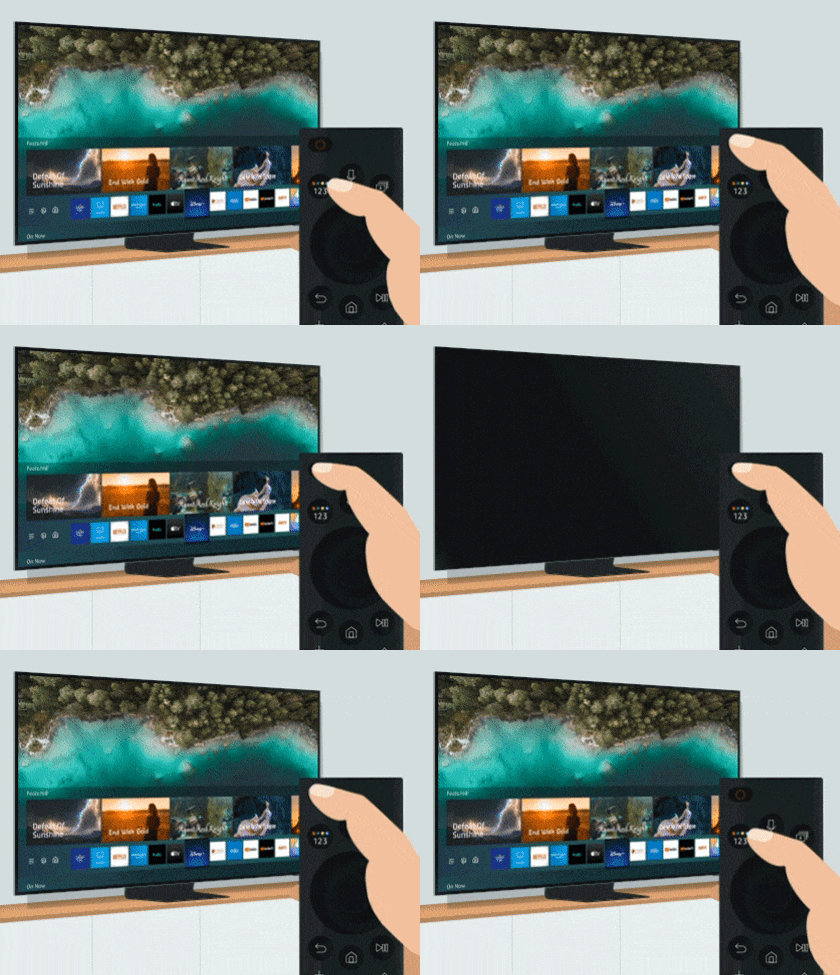
A soft reset shuts the TV down completely and reboots it, rather than placing it just into standby mode. This can solve issues that you may be having with apps. There are two ways to soft reset your TV.
- Press and hold the power button on your remote until the TV turns off and on again. This should only take about 5 seconds.
- Unplug your TV from the power socket for 30 seconds, and then plug it back in.
Software updates provide bug and security fixes for your device. Keep your TV’s software up to date to prevent errors.
Step 1. Press the Home button and navigate to the Settings.


Step 2. Go to Support, and then select Software Update.


Step 3. Click Update Now to start updating your TV.


This process removes old and useless data that causes problems and replaces it with fresh data.
Step 1. Press the Home button and navigate to Apps.


Step 2. Go to Settings.


Step 3. Navigate to the app, and then select Delete.


Step 4. Press the return button on your remote and select the Search icon and enter the name of the app and install it.


Note:
- If Delete is grayed out, this is a recommended app. Select Reinstall instead.
- Make sure that you have your login information before deleting or reinstalling an app. These steps will sign you out, and so you will need to sign back in.
Resetting Smart Hub will sign you out of every app that you use on your Smart TV, not just the app that you want to fix. Therefore, make sure that you have the current login information for all of your accounts before you proceed to reset.
- Models after 2020: Settings > Support > Service Care > Self Diagnosis > Reset Smart Hub
- Models before 2020: Settings > Support > Self Diagnosis > Reset Smart Hub.
Note:
- The default PIN is 0000.
- You may need to download the app again after the reset.
Note: Device screenshots and the menu are only a sample in English - they are also available in the language of your country.


Service Centers


Locate the nearest Samsung service center to have your product checked.
Thank you for your feedback!
Please answer all questions.
Contact Info
WhatsApp
![WhatsApp]()
![WhatsApp]()


Monday to Sunday
8:00 a.m. a 12:00 a.m.
LiveChat
![LiveChat]()
![LiveChat]()


Monday to Sunday
8:00 a.m. a 12:00 a.m.
Online
Call
Costa Rica: 00-800-1-726-7864
Ecuador: 1-800-72-6786
El Salvador: 800-0726-7864
Guatemala: 1-800-299-0033
Call
Honduras: 800-2791-9111
Jamaica: 1-800-726-7864
Nicaragua: 001-800-5077267
Panama: 800-0101
Call
Puerto Rico: 1-800-682-3180
Trinidad and Tobago: 1-800-726-7864
Venezuela: 0-800-100-5303
Dominican Republic: 1-800-751-2676